
How to Calculate Quartiles in Excel
Quartiles are statistical values that divide a sorted data set into four equal parts, with each quartile representing a specific percentile. This Excel tutorial will guide you through calculating quartiles using the QUARTILE.INC function.
Table of Contents
Use of the QUARTILE.INC function
To calculate quartiles in Excel just use QUARTILE.INC function. The QUARTILE.INC function in Excel returns the quartile of a set of data.
QUARTILE.INC syntax is:
=QUARTILE.INC(array, quart)
where:
array is your data table or data range from which you want to extract quartile values
quart is a number of quartile which you want to calculate
Example:
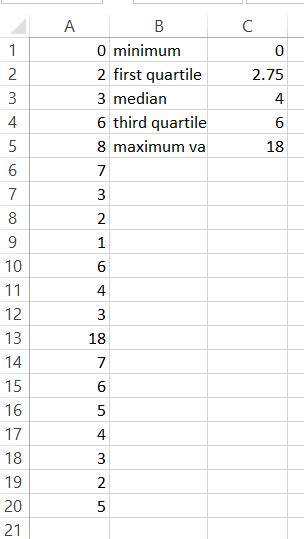
Your data table is in A1:A10 range and you want to calculate second quartile.
How to calculate a second quartile?
To calculate second quartile just use this function:
=IFERROR(QUARTILE.INC(A1:A20,2),”No Values”)
IFERROR function in this formula prevents you from #NUM! error. This Excel IFERROR formula prevents the #NUM! error which occurs when your data range contains empty cells or invalid entries.
Examples of calculating quartiles
You can set quart in QUARTILE.INC formula to 0 – 4.
=IFERROR(QUARTILE.INC(A1:A20;0);”No Values”) – shows minimum value
=IFERROR(QUARTILE.INC(A1:A20,1),”No Values”) – calculates first quartile
=IFERROR(QUARTILE.INC(A1:A20,2),”No Values”) – calculates second quartile (which is median)
=IFERROR(QUARTILE.INC(A1:A20,3),”No Values”) – calculates third quartile
=IFERROR(QUARTILE.INC(A1:A20,4),”No Values”) – shows maximum value

By changing the quart argument in the QUARTILE.INC formula, you can calculate different quartiles.


Leave a Reply