How to add target line to Excel chart
In this Excel charting tutorial, I will show you how to add a target line in an Excel chart. This is a way to compare actual performance against a goal or benchmark.

Excel Skills Simplified: Tutorials That Actually Work
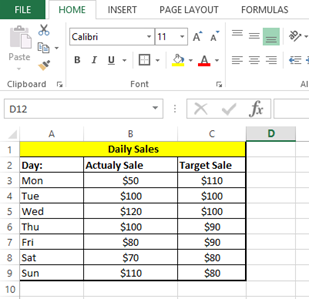
In this Excel charting tutorial, I will show you how to add a target line in an Excel chart. This is a way to compare actual performance against a goal or benchmark.
Reversing the order of your Excel data is a common task for reordering lists, prioritizing recent entries, or preparing data for specific analysis and presentations. Whether you need to flip a single column, multiple columns, or an entire spreadsheet, Excel provides several efficient methods to reverse data order while preserving data integrity and relationships between rows.
In this tutorial, you will learn different methods for flipping an Excel spreadsheet upside down without losing any of your data or formatting.
The VLOOKUP function in Excel lets you search for a value in the first column of a table. It then returns a value from another column in the same row. When working with data across multiple Excel files, you might need to reference data from a different workbook. This guide explains how to use VLOOKUP across workbooks in Excel efficiently.
Linking Excel spreadsheets to Word documents is valuable for creating comprehensive reports where detailed narratives accompany numerical analysis. Specifically, whether you need to reference Word documentation from your Excel data, embed Word content within your spreadsheet, or maintain connections between files for automatic updates, Excel offers multiple methods to integrate these two essential Office applications. Here are the most effective approaches you can use.
Creating a professional quotation format in Excel helps in presenting a clear, concise, and professional outline of services or products offered, along with their prices. Here’s how you can create a quotation format in Excel:
When it comes to analyzing non-parametric data and comparing two independent samples, the Mann-Whitney U test is a valuable tool. This statistical test allows you to determine if there are significant differences between the distributions of two groups. While performing the test manually might be intricate, using Excel simplifies the process, enabling you to make data-driven decisions with ease.
A DIF file is a data interchange file that can be used to exchange data between different applications. Excel can open DIF files, but there are a few things to keep in mind.