
How to calculate ratio?
In mathematics, a ratio is a comparison of two numbers. It is expressed as a colon (:) between the two numbers. For example, if there are 2 red balls and 3 blue balls on a table, the ratio of red balls to blue balls is 2:3.
How to calculate ratio in Excel
Below are three primary methods you can use to calculate ratios in Excel effectively.
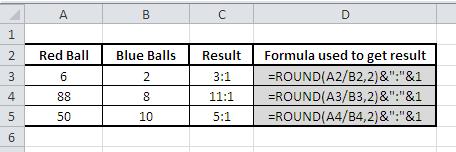
Using the ROUND function
First, you can use the ROUND function in Excel to trim down (reduce) a given value to a specific number of decimal places.
= ROUND (Number, Num_digits)

The ROUND function will round up or down depending on whether the last digit is greater than or less than 5.
Using the GCD function
Alternatively, you can use the GCD function, which stands for Greatest Common Divisor.
Finding the Greatest Common Divisor is the basis of the formula. To calculate the ratio, you just need to divide two numbers by their GCDs.
The formula I used in the example is:
=A3/GCD(A3,B3)&” : “&B3/GCD(A3,B3)

Indeed, the GCD function method provides the most convenient way to calculate ratios.
Using text functions
Text functions can also be used to display a ratio, although this approach doesn’t simplify the ratio mathematically. The formula =SUBSTITUTE(TEXT(A3/B3,”#####/#####”),”/”,”:”) formats the result of dividing A3 by B3 as a fraction and then replaces the forward slash with a colon. This method is primarily for displaying the ratio as a fraction in text form, not for performing further calculations with the simplified ratio.

The best method to use for calculating ratio in Excel depends on your specific needs.
- To calculate a ratio that needs to be displayed in a specific format, use the ROUND function.
- To calculate a ratio in a more precise way, use the GCD function.
- To calculate a ratio using text functions, use the SUBSTITUTE function.


Leave a Reply