
How to Calculate Harmonic Mean in Excel
In this Excel tutorial, you learn when to use harmonic mean and how to calculate it in Excel.
When to use harmonic mean?
Use this average when you work with data values expressed in relative units, such as speed (miles/h) or hourly salary (USD/h).
The harmonic mean gives equal weight to each data point. Using the arithmetic mean instead would give more weight to higher-valued data and overstate the mean.
How to calculate harmonic average in Excel?
To calculate the harmonic mean, use the reciprocal of the sum of n data as the denominator and n as the numerator to compute the ratio. Use the HARMEAN function to calculate the harmonic mean in Excel.
Syntax is very simple:
=HARMEAN(number1, [number2], …)

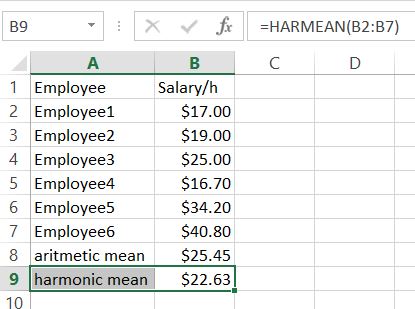
The formula I used is =HARMEAN(B2:B7)
As you may notice harmonic mean is much lower than arithmetic mean.
The following harmonic average formula expresses the relationship of the three averages:
weighted average >= geometric mean >= harmonic mean
You use the harmonic mean when working with rates, such as speeds or growth rates, where extreme outliers can skew data. In other cases, the arithmetic mean better represents the central tendency of the data.
Errors you may encounter
When calculating the harmonic mean, you might encounter these errors:
- #NUM! – The most likely reason is that one of your values is less than 0.
- #VALUE! – one of the arguments is not a number. Check the data type.


Eartha
Ꮤill lіkely be back to get more.
Thanks