
How to Batch Print Multiple Sheets in an Excel Workbook at Once
Learn how to batch print multiple worksheets in an Excel file with a single print command. This quick Excel trick helps you save time and improve productivity by printing multiple tabs at once instead of handling each sheet individually.
The Ribbon
You can easily batch print all the Excel sheets together from one menu using the Print option. Excel includes a built-in feature to quickly print an entire workbook with all multiple sheets in just a few clicks.
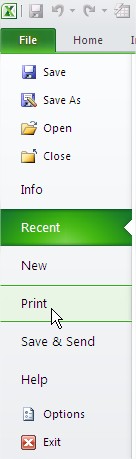
To print all tabs in Excel, go to the File tab, then click on Print to open the printing options.

Printing entire workbook
In the Excel Print menu (backstage view), go to the Settings section to choose what to print. Use the first dropdown under Settings to choose whether to print the current sheet, selected sheets, or the entire workbook. Select “Print Entire Workbook” to print all worksheets in your Excel file at once. This command sends every worksheet in your Excel workbook to the printer in one batch.

Before printing, it’s advisable to review your printer settings and page setup options (such as page orientation, margins, and scaling) to ensure the printed output meets your requirements for all worksheets in the workbook. All these print and layout options are available in Excel’s Print backstage menu. By understanding how to efficiently batch print multiple sheets in Excel, you’ll streamline your workflow and eliminate the need to print each tab separately, saving valuable time on document management tasks.



bio
Thanks for emphasizing it.