
Do While Loop in Excel Vba
You are going to learn about programming do while loops. First, you are going to learn what loops are and why they are necessary. Then you are going to learn how to use a do while loop.
Accessing the Do While Loop in VBA
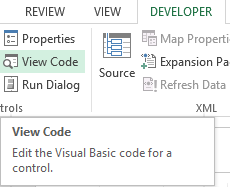
Click on the Developer tab and select View Code.

A new window (Visual Basic Editor) will open which will have a dialog box in the center. You will write the code in the dialog box.

Do While Loop Code Example
Write the following line of code in the dialog box.
Sub loopexample()

Dim counter As Integer

counter = 1

Do While counter < 5

Cells(counter, "D").Value = counter

counter = counter + 1

Loop
After writing the code close the window by clicking on the cross(x) icon the the upper right side of the screen.
Explanation: In this code you have declared a variable counter of data type integer and has assigned the value 1 to it. You used the do while loop with the condition to count from 1 to 4 and store the value in cell D.

After writing this code, close the window (visual basic editor) by clicking on the upper right cross button.
Do While Loop Results
This is the result. You have now successfully used a do while loop.

Why Use the Do While Loop?
The Do While Loop is a fundamental control structure in VBA programming that allows you to execute a block of code repeatedly as long as a condition is true. This looping mechanism is particularly useful when you need to process data until a specific condition is no longer met. Unlike the For Loop which iterates a fixed number of times, the Do While Loop provides flexibility by continuing execution based on a logical condition. VBA programmers often use the Do While Loop to automate data entry, validate spreadsheet values, and perform batch operations. Understanding how to properly implement and debug the Do While Loop is essential for creating efficient and reliable Excel VBA macros that handle complex automation tasks.


Fp
Read in the toilet lol