
How to calculate ROA?
In this Excel tutorial lesson, you will learn how to calculate ROA in Excel.
Table of Contents
What is ROA?
ROA stands for return on assets. Return of assets is one of the most basic measures in business. ROA is an indicator which is used to measure the efficiency of a company.
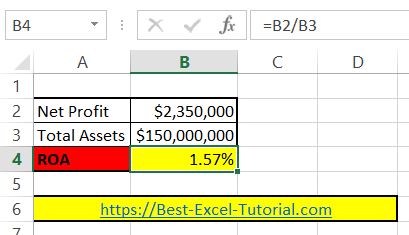
Let’s build the return on assets calculator in Excel. To calculate ROA in Excel, first you need some data. You need net profit and total assets.
To compute the ROA in your Excel worksheet, enter the formula =B2/B3 into cell B4.

ROA calculator
This formula divides the net profit, which you’ll input in cell B2, by the total assets from cell B3, aligning with the ROA formula:
ROA = Net Profit / Total Assets
Remember to format ROA as Percentage. Click B4 cell > click CTRL + 1 keyboard shortcut > click Percentage with 2 decimal places.

Note: The net income and total assets figures should be for the same time period, such as a quarter or a year, to ensure an accurate comparison.
Downloand a free sample spreadsheet here.
ROA Analysis in Excel
Besides calculating ROA, you can also perform deeper financial analysis in Excel. Furthermore, using Excel’s conditional formatting feature allows you to highlight cells based on ROA thresholds. For example, you might color cells green if ROA exceeds 10% and red if it falls below 5%. Additionally, creating a data table in Excel helps compare ROA values across different time periods or companies.
ROA Interpretation and Benchmarking
Once you calculate ROA in Excel, the next step is interpreting the results properly. In particular, a higher ROA indicates better asset efficiency, meaning the company generates more profit from each dollar of assets. However, ROA varies significantly by industry, so comparing a retail company’s ROA to a technology company’s ROA may not provide meaningful insights. Therefore, always benchmark ROA against industry averages using Excel’s AVERAGE function.
Advanced ROA Calculations
Moreover, you can enhance your ROA analysis by building more complex Excel spreadsheets. To illustrate, you might create formulas that calculate average total assets by adding beginning and ending asset values, then dividing by two. Likewise, some analysts prefer using EBITDA instead of net profit for a more accurate efficiency measure. In summary, mastering ROA calculations in Excel provides valuable insights into company profitability and operational efficiency.

wedfghytr
makes me happy how easy you made it